
Turn Your WordPress Blog into a Tumblr-style Tumblog for Free
Would you like to be able to post Tumblr-style image, link, quote posts, and more from your blog? Here’s how you can give your WordPress blog a makeover and give it the Tumblog power and simplicity you need.
Tumblr is a popular hosted blogging service that helped popularize Tumblogs, a type of blogs typically filled with short posts. Tumblr makes it dead simple to post images, videos, quotes, or links on your blog, and many users prefer this to full blog posts. Whether you’ve wanted to switch to a simpler blogging style or simply wanted to add some Tumblog-style posts to your existing blog, there’s now a way to do this without leaving WordPress behind. WooThemes recently released a free plugin, WooTumblog, that makes it easy to transform your WordPress blog into a perfect Tumblog. It’s slightly complicated to integrate with your site, so let’s see how it works.
Installing WooTumblog on Your WordPress Site
First, you’ll need to add the WooTumblog plugin to your site. Simply open the Add new Plugins page on your WordPress dashboard, search for WooTumblog, then install and activate it.
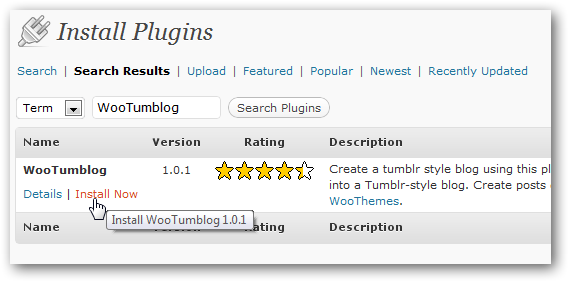
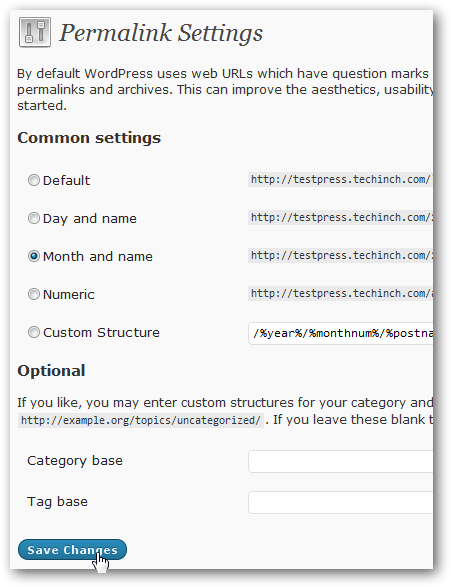
Now, open your Permalinks settings page under Settings on your WordPress Dashboard. Click Save on the bottom of the page without making any changes to register the custom taxonomies that WooTumblr added to your site.
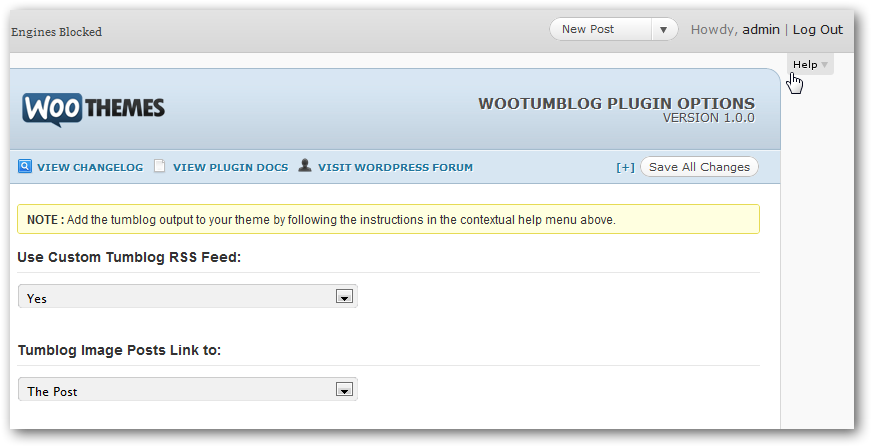
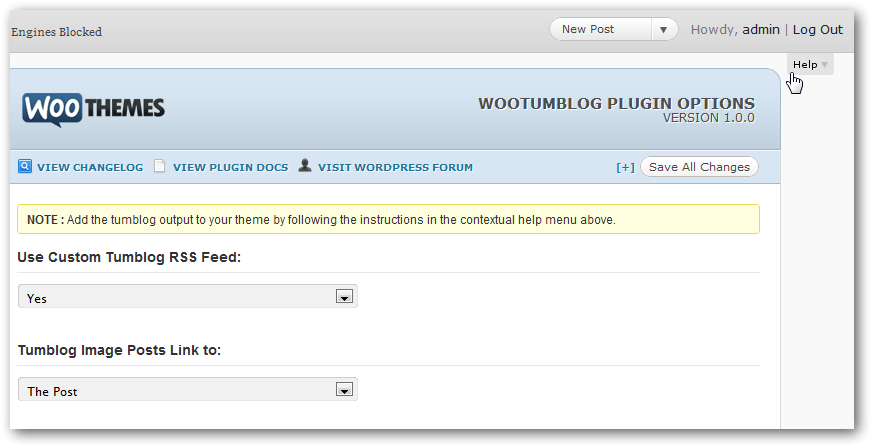
You can also tweak your Tumblog settings from the Tumblog Options link under Post on your Dashboard.
There’s one more thing you’ll need to do … you need to add some code to your theme files to get WooTumblog fully integrated in your site. Here’s how to do it.
Editing your Theme Files
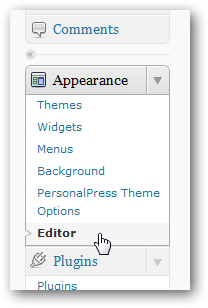 You’ll need to edit two of your theme’s PHP files to get the Tumblr functionality working on your site. Depending on your theme, you’ll need edit your index.php or loop.php file, as well as single.php. Open the Editor page under your WordPress Appearance menu, then select the appropriate file and make the following changes, or edit the files in your favorite offline text/code editor and upload the files once you’ve added the new content.
Editing loop.php
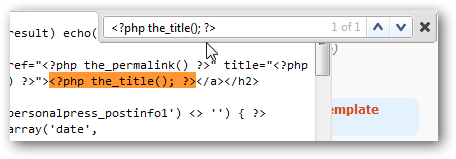
First, you’ll need to change your title style. Find the line that contains <?php the_title(); ?>, and replace that line with:
<?php woo_tumblog_the_title("entry-title"); ?>
You can do this easily by searching for the_title on the editor page; now just replace that whole line with the code above. Do note on some themes, including most themes from Elegant Themes, you’ll need to edit entry.php instead of index or loop.php, so you may need to look through your theme a bit to be sure. Alternately, if you’re using the WordPress 3.0 default theme, TwentyTen, just replace line 126 with that.
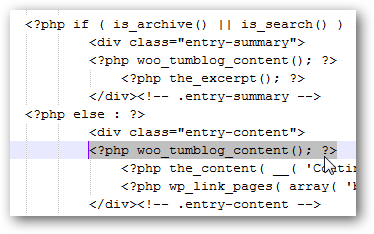
Now, scroll down a bit, and add the following code in a new line above both <?php the_excerpt(); ?> and <?php the_content:
<?php woo_tumblog_content(); ?>
These are located on lines 134 and 139, respectively, in the TwentyTen theme.
Once you’ve made the changes, be sure to save your file with the button on the bottom of the editor, or in your code editor program.
Editing single.php
Switch over to single.php, and add the same code as before. Replace the title line the same as above, then add <?php woo_tumblog_content(); ?> above the line containing <?php the_content(); ?>. These will be located on lines 23 and 30, respectively, on the TwentyTen theme.
Save your changes again, and if you’ve been editing your theme offline, go ahead and upload the changes.
If you need more help adding the Tumblog support to your theme, click the Help tab in your WordPress Dashboard Tumblog Options page.
Adding Tumblog Posts
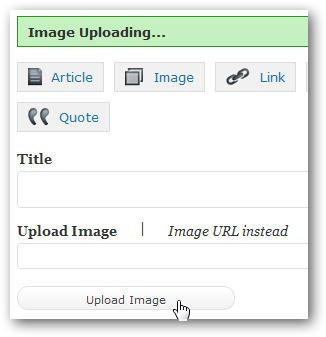
Your site won’t look any different until you start adding new Tumblog style posts. The good thing is, WooTumblog makes it easy to do that. Directly from your Dashboard, you can start adding new Quote, Image, Video, or other Tumblog-style posts via the new Tumblog widget. Simply select the article type you want, start adding your new content, and click Submit when you’re ready to publish your content.
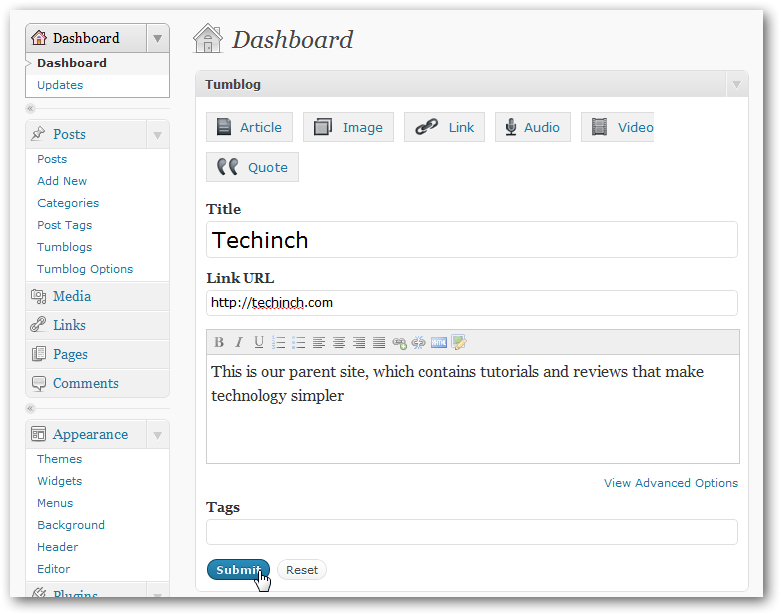
If you’re adding a picture post, you can upload the picture directly from the Tumblog widget. Quick and simple!
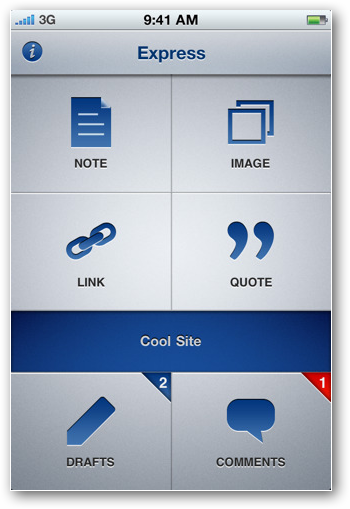
Alternately, if you have an iOS device, including an iPhone, iPod Touch, or iPad, you can purchase the Express for WordPress app, which lets you post Tumblog posts with images, links, quotes, and more directly from your device. Since Tumblog posts are generally shorter than full blog posts, this is a great way to keep your blog updated on the go. We plan to review the app soon, but if you try it out, let us know what you think!
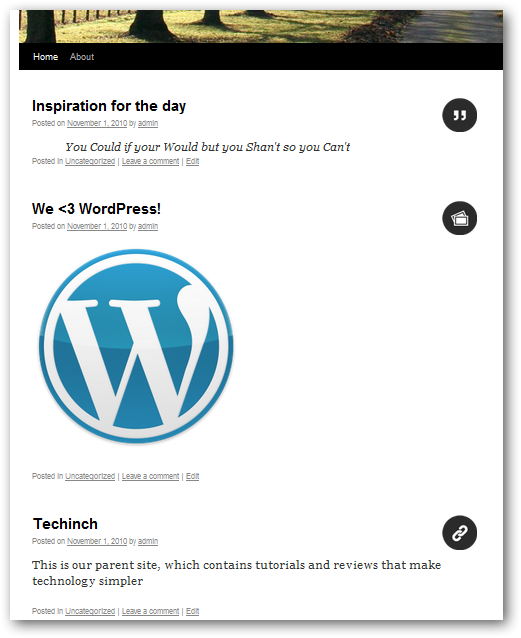
Once you’ve got some Tumblog-style posts up and running, visit your site’s homepage to see how the new posts look. With those few changes, you’ve just added a ton of functionality to your site!
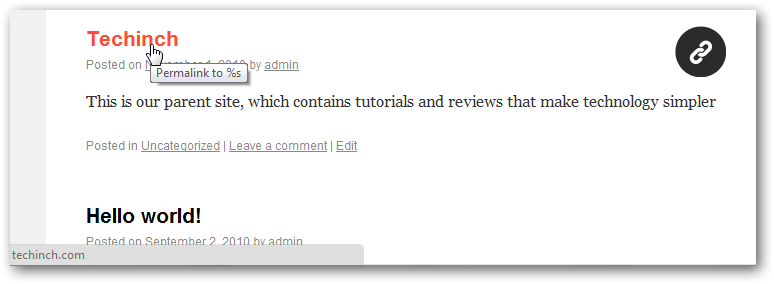
My favorite Tumblr feature is the Link posts, which let the title of your article link directly to the site or article you’re mentioning. And this works the exact same on your WordPress blog with WooTumblog.
See it in action
Want to see WooTumblog in action? Here’s the official video showing how to add it to your site and create tumblog posts:
Use a Theme With WooTumblog Built In
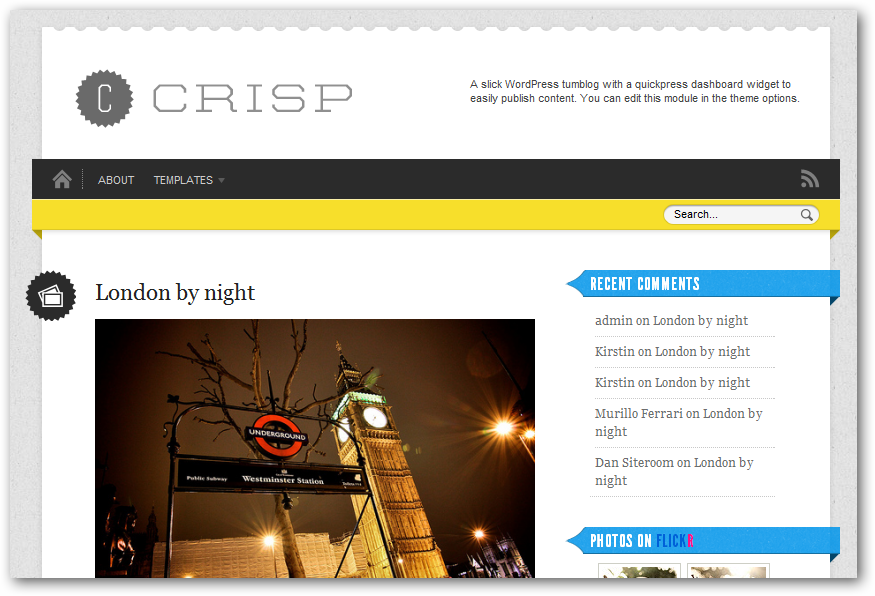
Although it’s not too hard to get WooTumblog integrated with your existing theme, sometimes it’s easier to just get a pre-existing theme that’s ready to use out of the box and go with it. WooThemes already offers 5 themes that include tumblog functionality already, so you won’t have to do anything extra to get it working. These include Retreat, Slanted, Cinch, and Crisp, my personal favorite. Canvas, WooTheme’s popular theme that lets you tweak it to no end, now also includes tumblog support. If you’d like to see how any of these themes work before you purchase one, be sure to test them out for free on the WooThemes Playground.
Conclusion
There’s a great reason WordPress is such a popular option for building blogs and websites of all shapes and sizes. The WooTumblr lets you keep using WordPress’ power while taking advantage of the simplicity of Tumblr. There’s a ton of uses for Tumblog themes, so let us know in the comments how you end up using your WordPress Tumblog … feel free to leave a link to your Tumblog site so we all can see it.
Get more information about the WooTumblr plugin
Get the Express App for your iPhone or iPod touch to post Tumblog posts on the go [App Store]
Check out all the tumblog WooThemes
Thoughts? @reply me on Twitter.